Keyboard Controls for Arcade Games
Most browser jumping games on a keyboard use one of two layouts: the arrow keys (or A and D) to move left and right plus Space, Up or W to jump, or a single key such as Space for games that only need one button. The best setup is the one that lets you press jump and steer at the same time without your hands tangling. This guide covers which keys to use, where to put your hands, and how games actually read what you press, so you can fix the small control problems that cost runs.
The common keyboard layouts
Arcade jumping games settle on a small number of keys so you never have to look down. On Jumping Arcade the patterns look like this:
| Control style | Keys | Example games |
|---|---|---|
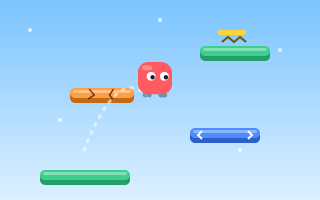
| Steer only | Left/Right arrows or A/D | Endless Jumper (the character bounces on its own) |
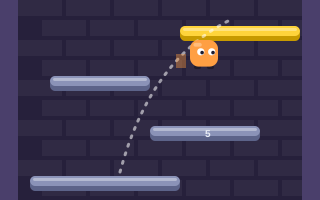
| Steer and jump | Left/Right to move plus a jump key (Space, Up or W in Sky Jump) | Sky Jump, Tower Jumper, Lava Jump, Spike Jumper |
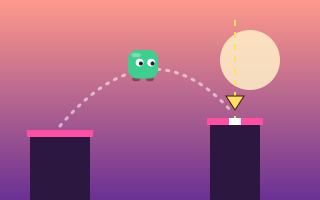
| One button | A single key such as Space (Perfect Jump also accepts click or tap) | Perfect Jump, Jump Over, Wall Jump, Gravity Jumper |
Each game page lists its own controls, so check there first. For a wider comparison of control schemes, including touch and mouse, read jumping game controls explained.
Hand positions that work
Split hands: arrows plus Space
Right hand on the arrow keys, left thumb on Space. This keeps steering and jumping on separate hands, which is ideal for games where you move and jump constantly, such as Sky Jump. Because the second jump of a double jump is a separate press, having a dedicated thumb on Space makes the mid-air tap quicker and cleaner.
One hand: A, D and W
Left hand only, with the index and ring fingers on D and A and the middle finger on W. Everything is within one hand, freeing the other for a mouse or a drink. The downside is that W is pressed by the same hand that steers, so fast combined inputs can feel cramped. Try both layouts for a few runs before deciding.
Right hand only: arrows with Up as jump
Some players use Left, Right and Up on one hand. It is compact, but rolling a finger from Right to Up while holding direction takes practice. If you find your jumps come out late, switch jump to your other hand.
Tip: choose the layout that separates the two actions you do simultaneously most often. In steer-and-jump games that is direction plus jump, so putting them on different hands usually gives the cleanest timing.
Press, hold and release: what the game sees
Browsers report two separate events for every key: keydown when it goes down and keyup when it comes back up. Games use these differently depending on the action.
- Held actions such as steering are tracked as a state. On
keydownthe game records that Left is held; onkeyupit clears it. Each frame the character moves if the key is still recorded as held. - Instant actions such as a jump trigger once on the press. A well-built game ignores the repeated
keydownevents your operating system sends while a key is held down, often by checkingevent.repeat. - Release-sensitive actions use
keyupas well. In a game with variable jump height, letting go early is what shortens the jump.
Jump Over is a good example of the last case: tap for a short hop, hold for a higher jump. On a keyboard that means practicing a clean, quick release of Space for low obstacles and hovering drones.
Why A/D works on different keyboard layouts
Modern browsers expose both event.key (the character the key produces, such as "a") and event.code (the physical key position, such as "KeyA"). Games that check the physical position keep WASD-style controls in the same place on non-QWERTY layouts, while games that check the character follow what is printed on the keycap. If the letter keys feel wrong on your keyboard, the arrow keys are the reliable fallback.
Browser quirks and how to avoid them
- Page scrolling. Space and the arrow keys normally scroll a web page. Browser games usually block that default behavior while they have focus, but if the page jumps instead of your character, click inside the game area once to give it focus.
- Lost focus. Switching tabs or clicking the address bar sends your key presses elsewhere. After alt-tabbing, click the game before continuing.
- Stuck keys. If you release a key while the window is not focused, the game may never receive the
keyupand your character keeps moving. Tap the same key again to clear it. - Key ghosting. Some keyboards cannot register certain combinations of three or more keys pressed together. If a jump sometimes fails while steering, try the other layout; arrows plus Space often avoids the clash.
Comfort and accessibility
Arcade sessions are made of many short, intense runs, so a comfortable setup matters. Keep your wrists level and relaxed rather than bent upward, and let your fingers rest on the keys between runs instead of hovering. If you play for a while, take short breaks; tension in your hands tends to show up as late or doubled presses.
Keyboard support is also an accessibility question. The W3C accessibility guidelines ask that web functionality be operable through a keyboard, and games that accept several keys for the same action, such as Space, Up or W for jumping in Sky Jump, give players more freedom to choose a position that works for their hands.
One-button games on a keyboard
With only one input, timing is everything, so make that input as consistent as possible. Rest your thumb on Space rather than hovering above it, and press with a short, even motion. In Perfect Jump, a power meter swings back and forth and your press locks in the current power, so a press that is a few frames late changes the distance you jump. A relaxed, repeatable press is more accurate than a hard, sudden one.
Explore more games that use this style in the one-button jump games category.
A short practice routine
Pick a steer-and-jump game such as Tower Jumper, where you build horizontal momentum and the faster you run, the higher you jump. Spend a few runs on each of these:
- Hold a direction the whole way across a floor and jump only at the edge, to feel how momentum builds.
- Release the direction key in mid-air and notice how far you still travel.
- Alternate layouts for a few runs and keep whichever gives you fewer missed jumps.
For warm-up with pure steering and no jump key, Endless Jumper lets you focus entirely on left and right, since the character bounces automatically. When you are ready to sharpen landings, move on to our precision jumping tips.
Key takeaways
- Steer with arrows or A/D, jump with Space, Up or W; one-button games usually use Space.
- Put steering and jumping on different hands if you often do both at once.
- Games track held keys as states and treat jumps as single presses; some also react to the release.
- If Space scrolls the page or keys stop responding, click the game area to restore focus.
- For one-button timing, a relaxed and repeatable press beats a hard one.
Playing on a phone instead? Our guide to mobile jumping game controls covers touch buttons and screen-half tapping.