Mobile Jumping Game Controls
On a phone, jumping games are controlled in one of three ways: tapping anywhere on the screen (one-button games), tapping the left or right half of the screen to steer, or pressing on-screen buttons for left, right and jump. The single most useful habit is to keep your thumbs resting close to where they need to press, so each touch is short and lands in the same place. Below you will find how each touch style works, which grip suits it, and how to fix the most common touch problems.
The three touch styles
Tap anywhere
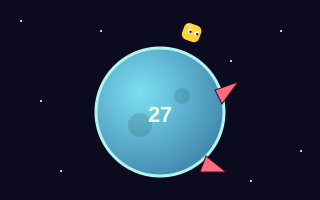
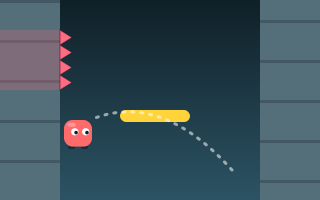
One-button games turn the whole screen into the button. There is nothing to aim at, so the only skill is when you tap. Tiny Jumper works this way: tap to jump, tap again in mid-air to double jump, while a tiny runner circles a small round planet and spikes appear on its surface. Wall Jump is the same idea applied vertically: you cling to one wall, slowly slide down, and each tap leaps you to the opposite wall.
Left half and right half
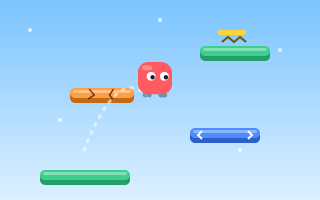
Steering games can split the screen down the middle. Touching the left half steers left and touching the right half steers right. Endless Jumper supports this alongside on-screen touch buttons: the character bounces automatically, so steering is all you do.
On-screen buttons
Games that need steering and a separate jump use visible buttons, typically directions on one side and jump on the other. Your thumbs need to find them without looking, which is the main difference from a physical keyboard. If you mostly play steer-and-jump games on a computer, compare with our guide to keyboard controls for arcade games.
Grips for each style
| Touch style | Suggested grip | Why |
|---|---|---|
| Tap anywhere | One hand, thumb resting near the lower middle | Short, identical taps; the rest of the screen stays visible |
| Screen halves | Two hands, one thumb per side | Each thumb owns one direction, so switching is instant |
| On-screen buttons | Two hands, thumbs hovering over their buttons | Steering and jumping can happen at the same moment |
Whatever grip you use, keep your thumbs low. A thumb in the middle of the screen covers the platforms you are trying to land on. In climbing games, new platforms appear from the top, so the upper part of the screen is where your eyes need to be.
Tip: rest your phone on a table or your lap for your first few runs of a new game. A steady screen makes it easier to learn the timing before adding the extra challenge of holding the device.
Taps, holds and releases
A touch is not a single moment: it has a start and an end, and games can react to either. Browsers report these through pointer events, such as pointerdown when a finger lands and pointerup when it lifts. Pointer events handle mouse, pen and touch with one set of code, which is why the same game can respond to a click on a laptop and a tap on a phone.
- Games that act on the touch start feel most responsive. Jump when the finger lands, not when it lifts.
- Games with variable jump height also watch for the lift. In Jump Over a quick tap makes a short hop and holding makes a higher jump, so on a phone you need a crisp tap-and-lift for low obstacles and hovering drones.
- Steering usually lasts as long as the finger is down. Lifting stops it, so do not let your thumb drift off a button mid-jump.
Timing on a touchscreen
Touch has no physical click, so it is harder to feel exactly when an input registered. Two habits help:
- Tap with the pad of the thumb, not the tip. A flatter touch lands more consistently than a pointed jab.
- Keep your thumb near the glass. A thumb raised high above the screen travels further on every tap, and that travel time varies. A thumb that hovers just above the surface taps with a steadier rhythm.
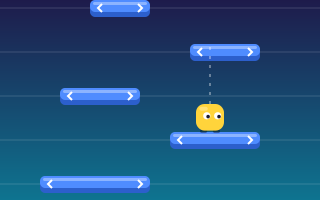
This matters most in timing games. In Moving Platforms, rows of platforms slide left and right above you and one press jumps you straight up; you land only if a platform is under you, and centered landings earn a bonus. Because platforms speed up and shrink as you climb, a consistent tap gets more valuable the higher you go.
For more on why one-input games are built this way, read one-button jumping games explained.
Screen edges, wrapping and small screens
A phone screen is narrow, and that changes how steering games feel. In Endless Jumper, leaving one side of the screen wraps you to the other. On a small display, that wrap is often the shortest route to the next platform: if a green platform sits near the right edge and you are near the left, steering left through the edge can be quicker than crossing the whole screen. With screen-half controls, remember that the direction you hold is the direction you travel, even when you pass through the edge, so keep your thumb down until you have reappeared on the far side.
Narrow screens also bring hazards closer to the edges, where your thumbs rest. If your hand covers the entry point of obstacles in a side-scrolling game, shift your grip lower on the device so your thumbs sit below the play area rather than beside it. Nothing in the game changes, but you gain a little extra warning, which on a touchscreen is often the difference between a planned jump and a hurried one.
Fixing common touch problems
- The page scrolls or zooms instead of jumping. Start your touch inside the game area. Touches that begin on the page around it are handled by the browser, not the game.
- A double tap zooms the page. Tap once, pause, then tap again inside the game. Rapid taps that start outside the game canvas are the usual cause.
- Taps are ignored during intense moments. Two fingers landing at nearly the same spot can be read as a different gesture. Lift one thumb before pressing with the other.
- Your palm triggers inputs. Hold the phone by its edges, especially on devices with curved screens.
- The game feels sluggish. Close other heavy tabs and apps. Browser games draw every frame, and a busy device can make timing feel inconsistent.
Choosing games that suit a phone
Any game on Jumping Arcade can be played with touch, but some feel especially natural on a small screen. One-tap games need no aiming, so they are easy to start on the move: browse the one-button jump games category. Steering games like Endless Jumper work well with the screen-half method. Games with steering plus a separate jump, such as those in the platform jumping games category, are more demanding with thumbs and reward a two-handed grip.
New to the genre altogether? Our beginner's guide to jumping games suggests where to start.
Key takeaways
- Touch controls come in three styles: tap anywhere, left and right screen halves, or on-screen buttons.
- Use one hand for tap-anywhere games and two hands for steering or button layouts.
- Keep thumbs low and close to the glass so taps are short, consistent and do not cover the action.
- Some games react to the lift of your finger as well as the touch, which controls jump height.
- Start touches inside the game area to avoid scrolling and zooming.